





Most publishing workflows become strangely manual right when the content is ready.
The article is approved. Then someone copies it into the CMS, adds the title and slug, checks the metadata, fixes the formatting, turns the same idea into social posts, and schedules everything.
Model Context Protocol, or MCP, gives AI tools a way to work directly with the systems involved in that process. Instead of generating a draft and stopping there, an AI assistant can retrieve approved information, use the tools you give it access to, and move work into the next system.
We spoke with people and teams already using MCP in real production workflows to see how they’ve set that up.
What MCP changes in a content publishing workflow
Model Context Protocol gives an AI application a consistent way to request approved tools and data during a workflow.
In a content workflow, that could mean giving an AI assistant approved access to:
- a project-management system that contains the brief,
- Google Drive or another document store,
- keyword or search data,
- a GitHub repository,
- a content management system,
- a social scheduling tool, or
- a content operations platform such as StoryChief.
The AI host can request the tool it needs during the workflow, use the structured response, and decide what step comes next within the permissions you have given it.
AI host → approved MCP tools → connected systems → human review and publish gate
1. Map the workflow before connecting any tools
Start with the workflow you already have.
Write down what happens from the moment an assignment becomes ready for production until the content is live. For a typical article, that might look like:
- brief approved,
- research gathered,
- draft created,
- editorial review completed,
- metadata added,
- CMS draft created,
- final preview checked, and
- article published.
Then identify the steps that require judgment and the steps that simply move known information from one place to another.
Aaron Whittaker, VP of Demand Generation and Marketing at Thrive Internet Marketing Agency, tested this distinction with a WordPress publishing workflow.
The trigger came only after an article moved from editorial review to approved for CMS entry. From there, MCP exposed the WordPress functions required to create and update the post. The approved headline went to the title field, the final copy to the content field, and the slug, category, and meta description to the corresponding CMS fields.
WordPress created a draft. It did not automatically make the page live.
“A draft can be automated; accountability cannot.”- Aaron Whittaker, VP of Demand Generation & Marketing, Thrive Internet Marketing Agency
That is a useful boundary for the rest of the workflow too. Automate the predictable work first. Keep a person attached to decisions that affect what the audience eventually sees.
2. Choose the host, tools, and permissions
An MCP workflow usually has an AI host, one or more MCP servers, and the tools those servers expose.
Bree Sharp uses Claude as the orchestrator for a publishing system connected to GitHub, Ubersuggest, Google Drive, Gmail, and Typefully. Her website runs on Astro and Cloudflare Pages, so publishing means creating a Git commit rather than writing directly to a traditional CMS.
Taras Tymoshchuk, CEO and co-founder of Geniusee, described a different stack. Claude Desktop connects to Notion for task management, GitHub for technical documentation, and Strapi for publishing.
The tools differ, but the permission rule is the same: give the agent access only to the operations required for that stage.
Sharp uses read-only permissions wherever reading is enough. Sensitive Cloudflare credentials stay outside the model and are handled through GitHub Actions. Geniusee’s self-hosted MCP servers also authenticate access and restrict repository operations.
Security rule: Start with the smallest permission set that can complete the workflow. Give write access only where the agent genuinely needs to write.
3. Give the workflow a clear trigger
An agent should know when it is allowed to begin.
At Geniusee, the workflow starts when a case study’s Notion status changes to Drafting. MCP then gathers technical context and pull-request summaries from GitHub and compiles them into a structured background brief in Notion for the technical writer.
Sharp starts her workflow with an approved brief, or on a schedule for recurring tasks such as refilling a social queue. The agent does not decide which topics deserve production.
Oscar Scolding’s Eclypseo workflow starts when a completed content brief is uploaded to Google Drive. Claude then gathers keyword and ranking data, scrapes the leading search results, produces the article, and uploads a Google Doc draft for human review.
A defined trigger does something simple but important: it stops the agent from having to guess whether the work is ready.
4. Let MCP gather the context the next step needs
A fixed automation works well when the same data always moves through the same sequence. Content workflows are often less predictable.
The research needed for one article may depend on what the search results show. A technical case study may need different GitHub context depending on the product. An existing article update may need to read the live page before deciding what to change.
This is where MCP earns its keep. The AI host can request an approved tool, inspect the result, and then choose the next permitted action.
In Sharp’s workflow, Ubersuggest supplies keyword volume, search results, and competitor information. Claude also reads the live sitemap through GitHub so it can check whether a proposed page could cannibalize something that already ranks.
The draft is then created against a template stored in the repository, complete with internal links and schema, before the commit is opened for review.
Tymoshchuk says that flexibility is one reason Geniusee chose MCP over a more rigid automation setup.
“We selected MCP over Zapier or similar tools because it lets the LLM request arbitrary information in natural language rather than defining a fixed set of API calls.”- Taras Tymoshchuk, CEO and co-founder, Geniusee
5. Create the draft in the system where the team will continue working
The handoff becomes much cleaner when the generated content lands where the next person already works.
That destination can vary:
- Thrive creates a WordPress draft.
- Sharp writes a file into a Git repository.
- Geniusee builds the writer’s background brief in Notion, then later sends approved content to Strapi.
- Eclypseo creates a Google Doc that human proofreaders review before anything reaches the CMS.
StoryChief provides another version of this workflow. Its remote MCP connection allows supported AI tools such as ChatGPT and Claude to work with StoryChief content. Teams can create or update content from the AI conversation, then continue review, approval, scheduling, and publishing inside StoryChief.
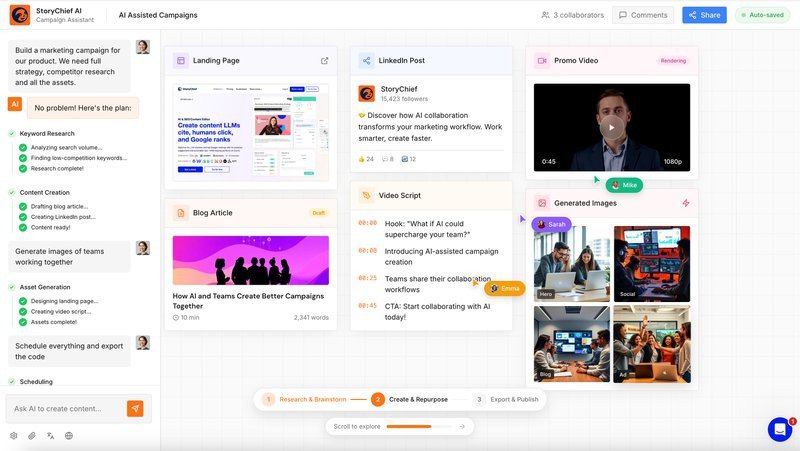
That removes one of the most common content-ops problems: the draft is finished, but the workflow still needs a person to rebuild it somewhere else.
6. Treat media as a separate publishing branch
Text and media do not always move through the same pipeline.
A title, article body, slug, or meta description can usually move between systems as structured text. Images and video often require an accessible asset URL, file upload, or digital asset management step.
StoryChief’s current ChatGPT MCP guidance notes that media created inside an AI chat may be private and unavailable through a public URL.
Media often needs a separate production step before it can move into the publishing workflow. The finished image or video still needs to be stored or uploaded somewhere the publishing system can access before it can move into the rest of the workflow.
Keep the media path explicit: create the asset, store it somewhere accessible, verify the file or URL, then attach it to the content. If that step fails, you can fix the media branch without restarting the article workflow.
7. Verify every write before the workflow continues
A successful tool call only tells you that the operation ran. It does not prove that the result is correct.
Sharp learned that distinction after a batch find-and-replace changed one character in a domain and invalidated 56 sitemap URLs. The operation technically succeeded.
Her workflow now reads shared files again after writing to them and checks the result before deployment continues.
“‘The tool returned 200’ and ‘the change is correct’ are different claims.”- Bree Sharp, Web Developer & Technical SEO Consultant
Whittaker uses a similar principle in the WordPress workflow. If a required value such as the category or URL slug is missing, the article remains a draft. The affected field can be corrected and the operation retried without rebuilding the full article.
Geniusee stops execution when a tool call fails and posts an error to Slack for troubleshooting. Eclypseo’s workflow simply does not create the expected draft when a step fails, with expired authentication tokens being a common cause during testing.
A safe write loop is: write → read → verify → continue. If verification fails, stop and retry before the next irreversible step.
8. Keep final publication behind an explicit approval gate
Across the workflows we looked at, the final publishing decision still belongs to a person.
Whittaker manually previews the WordPress draft and checks links, headings, spacing, metadata, and page rendering before publishing.
Sharp reads the Git diff before merge and checks the social queue before scheduling.
Eclypseo has human proofreaders review every word before the draft reaches a CMS.
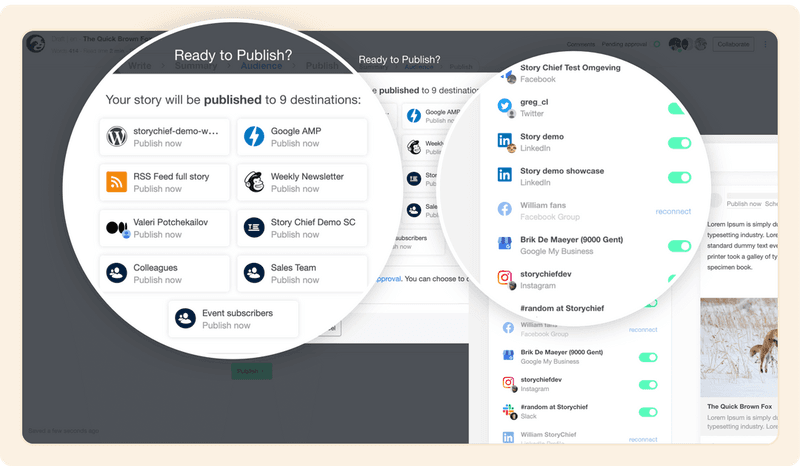
StoryChief follows the same operating principle. AI can help create and move content through the workflow, while review and approval give the team control over what eventually goes live.
MCP vs. fixed automation tools
MCP does not automatically replace tools such as Zapier or Make.
Fixed automation is often the simpler choice when the workflow is predictable: when X happens, move these exact fields to Y, then send Z notification.
MCP becomes more interesting when the next step depends on what the previous step returned.
Sharp describes fixed automation platforms as predefined graphs. They work well when the branches are known in advance. Her content workflow needs more flexibility because research results can change which tool or action is relevant next.
“The honest tradeoff is that a fixed graph fails loudly and an agent fails quietly.” - Bree Sharp, Web Developer & Technical SEO Consultant
Scolding reached a similar conclusion after Eclypseo built a 14-step Zapier version of its content workflow. Changes in scraper APIs regularly broke parts of the sequence, so the team moved the research workflow to MCP.
| Use fixed automation when | Consider MCP when |
|---|---|
| The steps are identical every time | The next step depends on returned information |
| Fields map predictably between two systems | The model needs to choose among approved tools |
| You want deterministic triggers and actions | The workflow includes research or context gathering |
| Failures should stop at a known step | You can add verification gates for agent decisions |
Four real MCP content workflows at a glance
| Workflow | Trigger and tools | Human gate |
|---|---|---|
| Thrive Internet Marketing Agency | Approved article → MCP → WordPress draft with title, copy, category, slug, and metadata | Preview and manual publication |
| Geniusee | Notion status → GitHub context → Notion brief → approved article → Strapi | Writer completes and approves article |
| Bree Sharp | Brief → keyword/SERP research → GitHub template → commit → Typefully repurposing | Read diff before merge and review social queue |
| Eclypseo | Drive brief → keyword and SERP tools → Google Doc draft | Human proofreaders review every word before CMS |
Build your first MCP publishing workflow narrowly
Do not connect your entire content stack on day one.
Pick one repetitive publishing bottleneck. Moving approved articles into the CMS is a good candidate because the inputs are already known and the result is easy to inspect.
Define the required fields. Give the agent only the tools it needs. Create the draft. Read it back. Decide what should happen when something is missing. Keep publication manual until the workflow has survived real use.
Then add another step.
That is much easier to maintain than a giant AI content machine touching eight systems at once.
How the workflow runs through StoryChief
StoryChief’s remote MCP server lets supported AI tools such as ChatGPT and Claude search for, create, and update content inside an authorized workspace.
The AI can hand work directly into the system where review, approval, scheduling, and publishing already happen.
1. Connect the right StoryChief workspace
StoryChief authorizes the MCP connection at the workspace level. If you manage several brands or clients, connect each workspace separately so the AI tool works with the right content and context.
2. Create or update content from the AI tool
Research and drafting can happen in the AI tool with context pulled from other connected systems, then the resulting content can be created or updated inside StoryChief without another copy-and-paste step.
3. Review and revise inside StoryChief
Once the draft lands in StoryChief, the team can use the editor, comments, review links, and approval workflow in the same place.
Reviewers can be internal users or external stakeholders, while final control over publication stays with the team.

Connected AI tools can also update existing StoryChief articles. MCP-made edits are tracked in version history and the activity log, and article locks prevent the AI from editing while someone already has the article open.
4. Schedule and publish after approval
After approval, StoryChief can schedule or publish the content to connected CMS, social, and email channels.
StoryChief remains the place that holds the calendar, destinations, review state, and final publishing controls.
The result is a simple handoff: create or update with the AI tool, review in StoryChief, approve, then schedule and publish.